如果 Windows 在移除工作/学校账户时提示“这台电脑未加入域”,但账户仍然残留在“设置 > 账户 > 连接工作或学校账户”中,可以尝试使用 dsregcmd /listaccounts 和 dsregcmd /cleanupaccounts 清理当前用户下残留的 Workplace Join / WAM 账户状态。
起初我在“设置 > 账户 > 连接工作或学校账户”中点击“断开连接”,系统要求输入当前登录的个人微软账号,整个过程看起来一切正常。
但重启后我发现,工作账户仍然存在,此时点击“断开连接”按钮会提示“这台电脑未加入域”。
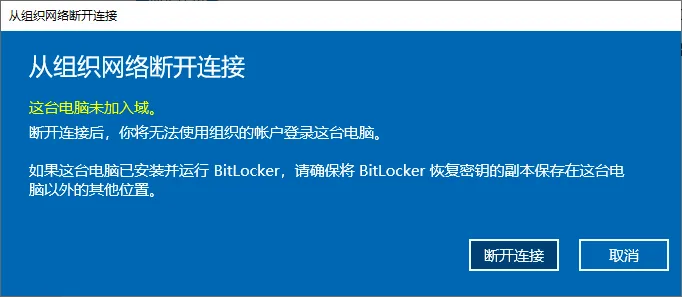
后来我查了下网上的解决方法,很多都比较玄学:要么删注册表,要么先切换为本地账户再删除工作账户,方案各不相同。我不太敢尝试删除注册表的做法,就想到 Windows 自带的管理工具,后来在排查过程中,意外找到了使用 dsregcmd 清理 Workplace Join 残留状态的方法。下面是具体过程。
- 在 PowerShell 中执行
dsregcmd /status,查看当前设备和用户的 Microsoft Entra ID / Workplace Join 状态:
[xxx] 中的内容为我在排查过程中隐藏的个人信息,实际操作时会显示具体的账户、设备等信息。- 后续命令需要在出现问题的当前登录用户下执行,而不是切换到其他管理员账户后执行。
 1
 2
 3
 4
 5
 6
 7
 8
 9
10
11
12
13
14
15
16
17
18
19
20
21
22
23
24
25
26
27
28
29
30
31
32
33
34
35
36
37
38
39
40
41
| $ dsregcmd /status
+----------------------------------------------------------------------+
| Device State |
+----------------------------------------------------------------------+
AzureAdJoined : NO
EnterpriseJoined : NO
DomainJoined : NO
Virtual Desktop : NOT SET
Device Name : [REDACTED_DEVICE_NAME]
+----------------------------------------------------------------------+
| User State |
+----------------------------------------------------------------------+
NgcSet : NO
WorkplaceJoined : YES
WorkAccountCount : 1
WamDefaultSet : YES
WamDefaultAuthority : [REDACTED]
WamDefaultId : [REDACTED_URL]
WamDefaultGUID : [REDACTED_GUID] (MicrosoftAccount)
...省略
+----------------------------------------------------------------------+
| Work Account 1 |
+----------------------------------------------------------------------+
WorkplaceDeviceId : [REDACTED_GUID]
WorkplaceThumbprint : [REDACTED_CERT_THUMBPRINT]
DeviceCertificateValidity : [REDACTED_DATE_RANGE]
KeyContainerId : [REDACTED_GUID]
KeyProvider : Microsoft Platform Crypto Provider
TpmProtected : YES
WorkplaceTenantId : [REDACTED_GUID]
WorkplaceTenantName : [REDACTED_TENANT]
WorkplaceMdmUrl :
WorkplaceSettingsUrl :
NgcSet : NO
...省略
|
可以注意到,下面这些信息均为 NO,说明当前设备确实没有加入任何组织或域:
1
2
3
4
5
| AzureAdJoined : NO
EnterpriseJoined : NO
DomainJoined : NO
AzureAdPrt : NO
EnterprisePrt : NO
|
但同时又能看到 User State 里 WorkplaceJoined : YES,且 WorkAccountCount : 1。
总结一下:设置页面“断开连接”之所以失败,可能是因为系统仍检测到残留的 Workplace Join 状态,但设备本身实际上并未加入域或组织。
实际上,这个问题可以直接通过 dsregcmd 处理。
- 执行
dsregcmd /listaccounts,列出当前用户下关联的工作账户,此时 User accounts 数量不为 0:
 1
 2
 3
 4
 5
 6
 7
 8
 9
10
11
12
| $ dsregcmd /listaccounts
Call ListAccounts to list WAM accounts from the current user profile.
User accounts:
Account: u:[REDACTED_ACCOUNT_ID].[REDACTED_TENANT_ID], user: [REDACTED_EMAIL], authority: [REDACTED_AUTHORITY_URL].
Accounts found: 1.
Application accounts:
Accounts found: 0.
Default account: [REDACTED_ACCOUNT_HANDLE], user: [REDACTED_EMAIL].
|
- 如果这里能看到残留的用户账户,接着执行
dsregcmd /cleanupaccounts:
 1
 2
 3
 4
 5
 6
 7
 8
 9
10
11
12
13
| $ dsregcmd /cleanupaccounts
Call CleanupAccounts to remove WAM accounts from the current user profile.
User accounts:
Removing account: u:[REDACTED_ACCOUNT_ID].[REDACTED_TENANT_ID], user: [REDACTED_EMAIL], authority: [REDACTED_URL].
Remove account result: 0x00000000.
Accounts found: 1.
Application accounts:
Accounts found: 0.
Default account: [REDACTED_ACCOUNT_HANDLE], user: [REDACTED_EMAIL].
|
- 然后再次执行
dsregcmd /listaccounts,注意到 User accounts 变为 0:
 1
 2
 3
 4
 5
 6
 7
 8
 9
10
| $ dsregcmd /listaccounts
Call ListAccounts to list WAM accounts from the current user profile.
User accounts:
Accounts found: 0.
Application accounts:
Accounts found: 0.
Default account: [REDACTED_ACCOUNT_HANDLE], user: [REDACTED_EMAIL].
|
可以看到,当前用户下残留的工作账户已经被清理。此时回到“设置 > 账户 > 连接工作或学校账户”中确认,原本无法删除的工作或学校账户已经不再显示,相关弹窗也不会再提示组织策略。
希望以上方法能帮到你。过程中我还尝试了其他排查账户故障的方式,这里不再赘述。